
| 일 | 월 | 화 | 수 | 목 | 금 | 토 |
|---|---|---|---|---|---|---|
| 1 | 2 | 3 | 4 | 5 | 6 | |
| 7 | 8 | 9 | 10 | 11 | 12 | 13 |
| 14 | 15 | 16 | 17 | 18 | 19 | 20 |
| 21 | 22 | 23 | 24 | 25 | 26 | 27 |
| 28 | 29 | 30 | 31 |
- 안드로이드 라이선스 종류
- android retrofit login
- 안드로이드 레트로핏 사용법
- 클래스
- Rxjava Observable
- 2022 플러터 안드로이드 스튜디오
- rxjava cold observable
- 자바 다형성
- jvm 작동 원리
- 안드로이드 라이선스
- 스택 큐 차이
- 안드로이드 유닛테스트란
- 객체
- 서비스 쓰레드 차이
- android ar 개발
- jvm이란
- 2022 플러터 설치
- 스택 자바 코드
- rxjava hot observable
- 안드로이드 os 구조
- rxjava disposable
- 안드로이드 레트로핏 crud
- 플러터 설치 2022
- 서비스 vs 쓰레드
- ar vr 차이
- 큐 자바 코드
- 안드로이드 유닛 테스트
- 멤버변수
- ANR이란
- 안드로이드 유닛 테스트 예시
- Today
- Total
나만을 위한 블로그
[Flutter] 다양한 유저 입력 다루기 - 2 - 본문
Slider
예시 코드는 아래와 같다.
import 'package:flutter/material.dart';

class SliderTest extends StatefulWidget {
  const SliderTest({super.key});

  @override
  State<SliderTest> createState() => _SliderTestState();
}

class _SliderTestState extends State<SliderTest> {

  double currentVolume = 0;

  @override
  Widget build(BuildContext context) {
    return Scaffold(
      appBar: AppBar(title: const Text("Slider 예시")),
      body: Center(
        child: Slider(
          value: currentVolume,
          max: 10,
          divisions: 10,
          label: currentVolume.toString(),
          onChanged: (double value) {
            setState(() {
              currentVolume = value;
            });
          },
        ),
      ),
    );
  }
}

처음엔 이런 화면이 나오는데 원을 잡고 좌우로 드래그하면 원 위에 현재 값을 보여준다.

아래는 Slider를 커스텀한 다른 예시들이다.
import 'package:flutter/material.dart';

class SliderTest extends StatefulWidget {
  const SliderTest({super.key});

  @override
  State<SliderTest> createState() => _SliderTestState();
}

class _SliderTestState extends State<SliderTest> {
  double currentVolume = 0;
  double customSlider1 = 50;
  double customSlider2 = 30;
  double customSlider3 = 5;
  double customSlider4 = 70;

  @override
  Widget build(BuildContext context) {
    return Scaffold(
      appBar: AppBar(title: const Text("Slider 커스텀 예시")),
      body: SingleChildScrollView(
        padding: const EdgeInsets.all(20),
        child: Column(
          crossAxisAlignment: CrossAxisAlignment.start,
          children: [
            const Text('1. 기본 Slider', style: TextStyle(fontSize: 18, fontWeight: FontWeight.bold)),
            Slider(
              value: currentVolume,
              max: 10,
              divisions: 10,
              label: currentVolume.toString(),
              onChanged: (double value) {
                setState(() {
                  currentVolume = value;
                });
              },
            ),
            const SizedBox(height: 30),

            const Text('2. 색상 커스텀', style: TextStyle(fontSize: 18, fontWeight: FontWeight.bold)),
            Slider(
              value: customSlider1,
              max: 100,
              divisions: 20,
              label: customSlider1.round().toString(),
              activeColor: Colors.purple,
              inactiveColor: Colors.purple.withOpacity(0.3),
              thumbColor: Colors.deepPurple,
              onChanged: (double value) {
                setState(() {
                  customSlider1 = value;
                });
              },
            ),
            const SizedBox(height: 30),

            const Text('3. SliderTheme 커스텀', style: TextStyle(fontSize: 18, fontWeight: FontWeight.bold)),
            SliderTheme(
              data: SliderThemeData(
                activeTrackColor: Colors.orange,
                inactiveTrackColor: Colors.orange.withOpacity(0.3),
                trackHeight: 8.0,
                thumbColor: Colors.orangeAccent,
                thumbShape: const RoundSliderThumbShape(enabledThumbRadius: 14.0),
                overlayColor: Colors.orange.withOpacity(0.2),
                overlayShape: const RoundSliderOverlayShape(overlayRadius: 28.0),
                tickMarkShape: const RoundSliderTickMarkShape(),
                activeTickMarkColor: Colors.white,
                inactiveTickMarkColor: Colors.orange.withOpacity(0.5),
                valueIndicatorShape: const PaddleSliderValueIndicatorShape(),
                valueIndicatorColor: Colors.orangeAccent,
                valueIndicatorTextStyle: const TextStyle(
                  color: Colors.white,
                  fontSize: 16.0,
                ),
              ),
              child: Slider(
                value: customSlider2,
                max: 100,
                divisions: 10,
                label: '${customSlider2.round()}%',
                onChanged: (double value) {
                  setState(() {
                    customSlider2 = value;
                  });
                },
              ),
            ),
            const SizedBox(height: 30),

            const Text('4. 커스텀 Thumb 모양', style: TextStyle(fontSize: 18, fontWeight: FontWeight.bold)),
            SliderTheme(
              data: SliderThemeData(
                activeTrackColor: Colors.teal,
                inactiveTrackColor: Colors.teal.withOpacity(0.3),
                trackHeight: 6.0,
                thumbShape: const DiamondSliderThumbShape(),
                overlayColor: Colors.teal.withOpacity(0.2),
              ),
              child: Slider(
                value: customSlider3,
                max: 10,
                onChanged: (double value) {
                  setState(() {
                    customSlider3 = value;
                  });
                },
              ),
            ),
            const SizedBox(height: 30),

            const Text('5. 그라데이션 트랙', style: TextStyle(fontSize: 18, fontWeight: FontWeight.bold)),
            SliderTheme(
              data: SliderThemeData(
                trackHeight: 10.0,
                thumbShape: const RoundSliderThumbShape(enabledThumbRadius: 12.0),
                overlayShape: const RoundSliderOverlayShape(overlayRadius: 24.0),
                trackShape: const GradientRectSliderTrackShape(),
              ),
              child: Slider(
                value: customSlider4,
                max: 100,
                onChanged: (double value) {
                  setState(() {
                    customSlider4 = value;
                  });
                },
              ),
            ),
          ],
        ),
      ),
    );
  }
}

class DiamondSliderThumbShape extends SliderComponentShape {
  const DiamondSliderThumbShape({this.thumbRadius = 12.0});

  final double thumbRadius;

  @override
  Size getPreferredSize(bool isEnabled, bool isDiscrete) {
    return Size.fromRadius(thumbRadius);
  }

  @override
  void paint(
      PaintingContext context,
      Offset center, {
        required Animation<double> activationAnimation,
        required Animation<double> enableAnimation,
        required bool isDiscrete,
        required TextPainter labelPainter,
        required RenderBox parentBox,
        required SliderThemeData sliderTheme,
        required TextDirection textDirection,
        required double value,
        required double textScaleFactor,
        required Size sizeWithOverflow,
      }) {
    final Canvas canvas = context.canvas;

    final paint = Paint()
      ..color = sliderTheme.thumbColor ?? Colors.blue
      ..style = PaintingStyle.fill;

    final path = Path();
    path.moveTo(center.dx, center.dy - thumbRadius);
    path.lineTo(center.dx + thumbRadius, center.dy);
    path.lineTo(center.dx, center.dy + thumbRadius);
    path.lineTo(center.dx - thumbRadius, center.dy);
    path.close();

    canvas.drawPath(path, paint);
  }
}

class GradientRectSliderTrackShape extends SliderTrackShape with BaseSliderTrackShape {
  const GradientRectSliderTrackShape();

  @override
  void paint(
      PaintingContext context,
      Offset offset, {
        required RenderBox parentBox,
        required SliderThemeData sliderTheme,
        required Animation<double> enableAnimation,
        required TextDirection textDirection,
        required Offset thumbCenter,
        bool isDiscrete = false,
        bool isEnabled = false,
        Offset? secondaryOffset,
      }) {
    final Rect trackRect = getPreferredRect(
      parentBox: parentBox,
      offset: offset,
      sliderTheme: sliderTheme,
      isEnabled: isEnabled,
      isDiscrete: isDiscrete,
    );

    final gradient = const LinearGradient(
      colors: [
        Colors.red,
        Colors.orange,
        Colors.yellow,
        Colors.green,
        Colors.blue,
        Colors.indigo,
        Colors.purple,
      ],
    );

    final paint = Paint()..shader = gradient.createShader(trackRect);

    final activeRect = Rect.fromLTRB(
      trackRect.left,
      trackRect.top,
      thumbCenter.dx,
      trackRect.bottom,
    );

    context.canvas.drawRRect(
      RRect.fromRectAndRadius(activeRect, const Radius.circular(5)),
      paint,
    );

    final inactivePaint = Paint()
      ..color = Colors.grey.withOpacity(0.3)
      ..style = PaintingStyle.fill;

    final inactiveRect = Rect.fromLTRB(
      thumbCenter.dx,
      trackRect.top,
      trackRect.right,
      trackRect.bottom,
    );

    context.canvas.drawRRect(
      RRect.fromRectAndRadius(inactiveRect, const Radius.circular(5)),
      inactivePaint,
    );
  }
}

Checkbox, Switch, Radio
import 'package:flutter/material.dart';

class ToggleWidgetTest extends StatelessWidget {
  const ToggleWidgetTest({super.key});

  @override
  Widget build(BuildContext context) {
    return Scaffold(
      appBar: AppBar(title: const Text("SelectableText 테스트")),
      body: Center(
        child: Column(
          children: [
            CheckboxTest(),
            SwitchTest(),
            RadioTest(),
          ],
        ),
      ),
    );
  }
}

class CheckboxTest extends StatefulWidget {
  const CheckboxTest({super.key});

  @override
  State<CheckboxTest> createState() => _CheckboxTestState();
}

class _CheckboxTestState extends State<CheckboxTest> {

  bool isChecked = false;

  @override
  Widget build(BuildContext context) {
    return Checkbox(
      checkColor: Colors.white,
      value: isChecked,
      onChanged: (bool? value) {
        setState(() {
          isChecked = value!;
        });
      },
    );
  }
}

class SwitchTest extends StatefulWidget {
  const SwitchTest({super.key});

  @override
  State<SwitchTest> createState() => _SwitchTestState();
}

class _SwitchTestState extends State<SwitchTest> {

  bool light = true;

  @override
  Widget build(BuildContext context) {
    return Switch(
      value: light,
      activeThumbColor: Colors.red,
      onChanged: (bool value) {
        setState(() {
          light = value;
        });
      },
    );
  }
}

enum Character {
  musician,
  chef,
  firefighter,
  artist,
}

class RadioTest extends StatefulWidget {
  const RadioTest({super.key});

  @override
  State<RadioTest> createState() => _RadioTestState();
}

class _RadioTestState extends State<RadioTest> {

  Character? _character = Character.musician;

  void setCharacter(Character? value) {
    setState(() {
      _character = value;
    });
  }

  @override
  Widget build(BuildContext context) {
    return RadioGroup(
      groupValue: _character,
      onChanged: setCharacter,
      child: Column(
        children: [
          ListTile(
            title: const Text('Musician'),
            leading: Radio<Character>(value: Character.musician),
          ),
          ListTile(
            title: const Text('Chef'),
            leading: Radio<Character>(value: Character.chef),
          ),
          ListTile(
            title: const Text('Firefighter'),
            leading: Radio<Character>(value: Character.firefighter),
          ),
          ListTile(
            title: const Text('Artist'),
            leading: Radio<Character>(value: Character.artist),
          ),
        ],
      ),
    );
  }
}

Checkbox는 onChange에서 전달하는 값이 bool?인 것에 주의하면 된다.
Radio는 RadioGroup을 먼저 만들고 Column 또는 Row로 Radio들을 배치할 영역을 만든 다음 Radio를 추가하면 된다. 예시에선 ListTile을 써서 추가한다.
그 외에는 enum이 있다 정도인 간단한 예시다.
DatePickerDialog
이 예시를 확인하기 전에 intl 라이브러리를 먼저 추가해야 한다.
intl | Dart package
Contains code to deal with internationalized/localized messages, date and number formatting and parsing, bi-directional text, and other internationalization issues.
pub.dev
dart는 DateFormat이 기본 제공이 아니라 intl 라이브러리에서 가져와 써야 하는 구조기 때문이다. 안드 개발자한테는 이걸 라이브러리 추가해서 써야 할 정도의 그건가 싶을 수 있다.
예시는 아래와 같다.
import 'package:flutter/material.dart';
import 'package:intl/intl.dart';

class DatePickerDialogTest extends StatefulWidget {
  const DatePickerDialogTest({super.key});

  @override
  State<DatePickerDialogTest> createState() => _DatePickerDialogTestState();
}

class _DatePickerDialogTestState extends State<DatePickerDialogTest> {

  DateTime? selectedDate;

  @override
  Widget build(BuildContext context) {
    var date = selectedDate;

    return Scaffold(
      appBar: AppBar(title: const Text("DatePickerDialog 테스트")),
      body: Center(
        child: Column(
          children: [
            Text(
              date == null
                  ? "날짜를 선택하세요"
                  : DateFormat("yyyy-MM-dd").format(date),
            ),
            ElevatedButton.icon(
              icon: const Icon(Icons.calendar_today),
              onPressed: () async {
                var pickedDate = await showDatePicker(
                  context: context,
                  initialEntryMode: DatePickerEntryMode.calendarOnly,
                  initialDate: DateTime.now(),
                  firstDate: DateTime(2019),
                  lastDate: DateTime(2050),
                );

                setState(() {
                  selectedDate = pickedDate;
                  debugPrint("선택한 날짜 : $selectedDate");
                });
              },
              label: const Text("날짜 선택"),
            )
          ],
        ),
      ),
    );
  }
}
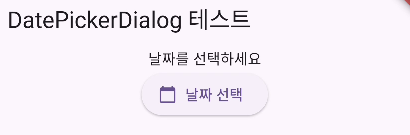
이후 날짜 선택 버튼을 누르면 날짜 선택 다이얼로그가 표시된다.

아무 날짜나 선택하면 화면에 바뀐 날짜가 표시된다.
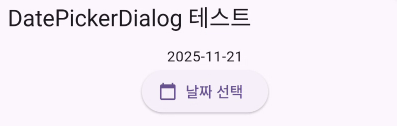
로그에도 선택한 날짜가 시분초 단위까지 표시된다.
I/flutter (17793): 선택한 날짜 : 2025-11-21 00:00:00.000
onPressed는 async를 사용했는데 showDatePicker는 Future<DateTime?> 타입의 값을 리턴하며 유저가 날짜를 선택할 때까지 기다려야 해서 즉시 값을 리턴할 수 없다.
유저가 다이얼로그를 열면 닫히기까지 기다려야 하는데, async로 선언했으니 await를 써서 비동기로 선택한 날짜값을 받아온다.
그 외에는 생명주기 함수도 없는 간단한 예시다.
이 피커의 바로 다음 예시가 TimePickerDialog인데 비슷한 내용이기 때문에 생략한다. 이 예시를 이해했다면 이해할 수 있는 내용이다.
Dismissible
Dismissible은 유저가 스와이프로 해제할 수 있는 위젯이다. 옛날 아이폰의 밀어서 잠금해제처럼 스와이프로 리스트뷰의 아이템을 하나씩 제거할 때 사용할 수 있다.
import 'package:flutter/material.dart';

class DismissibleTest extends StatefulWidget {
  const DismissibleTest({super.key});

  @override
  State<DismissibleTest> createState() => _DismissibleTestState();
}

class _DismissibleTestState extends State<DismissibleTest> {

  List<int> items = List<int>.generate(100, (int index) => index);

  @override
  Widget build(BuildContext context) {
    return Scaffold(
      appBar: AppBar(title: const Text("DatePickerDialog 테스트")),
      body: Center(
        child: ListView.builder(
          itemCount: items.length,
          padding: const EdgeInsets.symmetric(vertical: 16),
          itemBuilder: (BuildContext context, int index) {
            return Dismissible(
              background: Container(
                color: Colors.green,
              ),
              key: ValueKey<int>(items[index]),
              onDismissed: (DismissDirection direction) {
                setState(() {
                  items.removeAt(index);
                });
              },
              child: ListTile(
                title: Text(
                  'Item ${items[index]}',
                ),
              ),
            );
          },
        ),
      ),
    );
  }
}
위 코드를 실행해서 아이템을 왼쪽이나 오른쪽으로 스와이프해보면 이렇게 표시된 후 사라진다.

이상이 문서에서 설명하는 위젯들이고 다른 Material 위젯들은 아래 링크에서 확인할 수 있다.
https://docs.flutter.dev/ui/widgets/material
Material component widgets
A catalog of Flutter's widgets implementing Material 3 design guidelines.
docs.flutter.dev
다른 내용들도 많으니 관심 있다면 확인해 본다.
'Flutter' 카테고리의 다른 글
| [Flutter] Retrofit, Dio 사용해서 네트워크 통신하기 - 1 - (0) | 2025.11.29 |
|---|---|
| [Flutter] 다양한 유저 입력 다루기 - 1 - (0) | 2025.11.21 |
| [Flutter] 핸드폰 흔들기 감지 - shake 라이브러리 사용법 (0) | 2025.11.16 |
| [Flutter] fatal: detected ownership in repository at '플러터 설치 경로' 에러 해결 (0) | 2025.11.15 |
| [Flutter] 리스트뷰 구현 시 shrinkWrap 프로퍼티를 꼭 써야 하는가? (0) | 2025.10.26 |
